

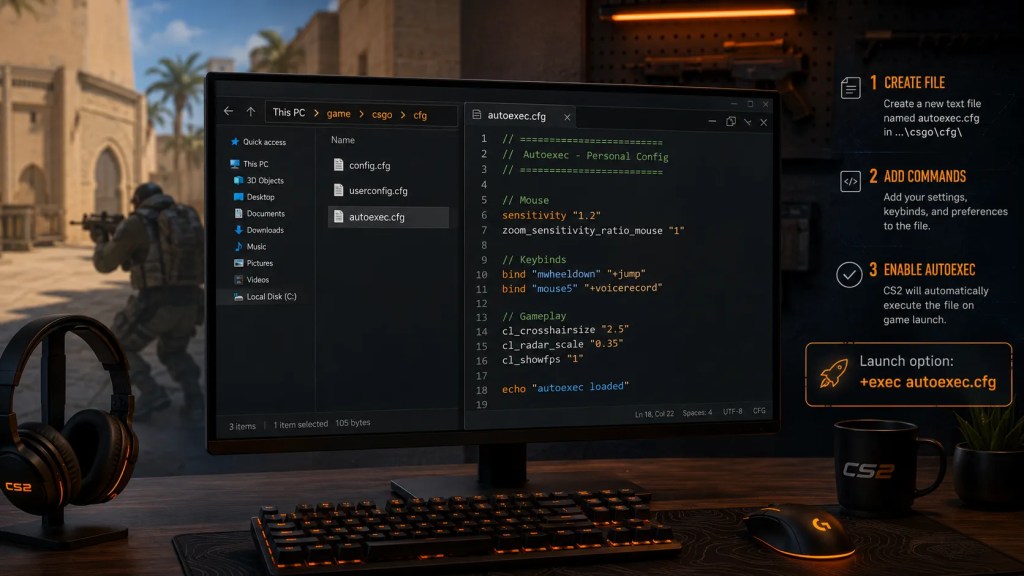
If you want your CS2 settings to load the same way every time you open the game, you need an autoexec.cfg file.
This is not some magic pro-player secret. It is just a small config file where you keep your personal commands: binds, crosshair tweaks, radar settings, volume, FPS cap, and other setup details you do not want to type manually every time.
In this guide, I’ll show you how to create autoexec CS2, where to put the file, how to make Counter-Strike 2 run it on launch, and how to fix the usual mistakes when your autoexec does not work.
What Is an Autoexec in CS2?
An autoexec is a custom config file that Counter-Strike 2 can execute when the game starts.
The file name is:
autoexec.cfg
Inside this file, you can add CS2 console commands. When the file runs, CS2 applies those commands automatically.
For example:
sensitivity "1.2"volume "0.5"cl_radar_scale "0.35"bind "mwheeldown" "+jump"echo "autoexec loaded"
That last line is useful. If you see autoexec loaded in the console, you know the file actually ran.
Why Use an Autoexec in CS2?
A CS2 autoexec is useful because it keeps your setup consistent.
You should use one if you:
- have custom binds;
- want your crosshair commands saved separately;
- play on different PCs;
- often tweak settings through the console;
- want a clean backup of your setup;
- do not want to rebuild your config after updates or reinstalling the game.
The main idea is simple: your important CS2 settings live in one file that you control.
CS2 Autoexec Location: Where to Put autoexec.cfg
For Counter-Strike 2, the usual autoexec location is:
...\Steam\steamapps\common\Counter-Strike Global Offensive\game\csgo\cfg
Yes, the folder still says Counter-Strike Global Offensive. That is normal. CS2 still uses that Steam installation folder name.
A common full Windows path looks like this:
C:\Program Files (x86)\Steam\steamapps\common\Counter-Strike Global Offensive\game\csgo\cfg
If your Steam library is on another drive, your path may start with D:\SteamLibrary, E:\Steam, or another custom folder.
How to Find the CS2 cfg Folder Through Steam
The easiest way:
- Open Steam.
- Go to your Library.
- Right-click Counter-Strike 2.
- Choose Manage.
- Click Browse local files.
- Open:
game → csgo → cfg
This cfg folder is where your autoexec.cfg file should go.

How to Create Autoexec CS2
Now let’s create the file properly.
The biggest mistake people make is saving it as autoexec.cfg.txt. Windows loves doing this if file extensions are hidden.
Step 1: Open the CS2 cfg Folder
Go to:
...\Steam\steamapps\common\Counter-Strike Global Offensive\game\csgo\cfg
Or find it through Steam:
Counter-Strike 2 → Manage → Browse local files → game → csgo → cfg
Step 2: Create a New File
Inside the cfg folder:
- Right-click in the empty space.
- Select New.
- Select Text Document.
- Rename it to:
autoexec.cfg
Make sure the file is not called:
autoexec.cfg.txt
That will not work as intended.
Step 3: Show File Extensions in Windows
If you cannot see the real file extension, enable it.
On Windows 11:
File Explorer → View → Show → File name extensions
On Windows 10:
File Explorer → View → File name extensions
Now check the file name again. It must be exactly:
autoexec.cfg
Step 4: Open the File With a Text Editor
Right-click the file and open it with Notepad, Notepad++, VS Code, or any plain text editor.
Do not use Word. Do not use Google Docs. You need a clean .cfg file, not a formatted document.
Step 5: Add Your CS2 Commands
Here is a simple starter autoexec for CS2:
// CS2 autoexec.cfg// Mousesensitivity "1.2"// Audiovolume "0.5"// Radarcl_radar_scale "0.35"// FPS capfps_max "400"// Bindsbind "mwheeldown" "+jump"bind "mouse4" "+voicerecord"// Confirm loadecho "autoexec loaded"
This is intentionally simple. Do not start with a huge config full of random commands from five different pro players. First, make sure your autoexec works. Then add more commands only when you know what they do.
How to Make CS2 Run Autoexec Automatically
To make CS2 run your autoexec every time the game starts, add it to Steam launch options.
Add +exec autoexec.cfg to CS2 Launch Options
- Open Steam.
- Go to your Library.
- Right-click Counter-Strike 2.
- Click Properties.
- Stay on the General tab.
- Find Launch Options.
- Add this:
+exec autoexec.cfg
If you already have launch options, just add it after them.
Example:
-novid -console +exec autoexec.cfg
Now CS2 should execute your autoexec when the game launches.
How to Run Autoexec Manually in CS2
You can also test the file manually through the console.
Open the CS2 developer console and type:
exec autoexec.cfg
If the file is named correctly and placed in the right folder, CS2 should run it.
If you added this line:
echo "autoexec loaded"
Then the console should print:
autoexec loaded
That is the easiest way to check if your autoexec is working.
Good Commands to Put in a CS2 Autoexec
Your autoexec should match your own setup. Still, there are a few types of commands that make sense for most players.
Mouse Sensitivity
sensitivity "1.2"
Use your own value. Do not copy someone else’s sensitivity unless you are testing it on purpose.
Volume
volume "0.5"
This sets your main game volume. Change the number to whatever feels right.
Radar Scale
cl_radar_scale "0.35"
A smaller radar scale can show more of the map, which helps with awareness. Test it and adjust if the radar feels too zoomed out.
Jump Bind
bind "mwheeldown" "+jump"
A lot of CS players bind jump to mouse wheel because it feels comfortable for movement. You can still keep jump on Space as well.
Voice Chat Bind
bind "mouse4" "+voicerecord"
Only use this if Mouse4 is comfortable for you. If not, pick another key.
FPS Cap
fps_max "400"
This sets a maximum FPS value. The right number depends on your PC and monitor. If your game feels smoother with a different cap, use that instead.
Clean CS2 Autoexec Template
Here is a clean template you can copy and edit:
// =============================// CS2 Autoexec// =============================// Mousesensitivity "1.2"// Audiovolume "0.5"// Radarcl_radar_scale "0.35"// FPSfps_max "400"// Bindsbind "mwheeldown" "+jump"bind "mouse4" "+voicerecord"// Test messageecho "autoexec loaded"
Start with this, launch CS2, open console, and check if the echo message appears.
Once you know it works, you can add your crosshair commands, viewmodel commands, or other personal settings.
CS2 Autoexec Not Working: Common Fixes
If your CS2 autoexec is not working, check these things first.
1. The File Is Actually autoexec.cfg.txt
This is the classic problem.
Correct:
autoexec.cfg
Wrong:
autoexec.cfg.txt
Enable file extensions in Windows and check the real name.
2. The File Is in the Wrong Folder
For CS2, put it here:
...\Steam\steamapps\common\Counter-Strike Global Offensive\game\csgo\cfg
Do not put it in the older-looking csgo\cfg folder outside game unless you know exactly what you are doing. For CS2, the important path is usually:
game\csgo\cfg
3. Launch Options Are Missing
If you want the file to run when CS2 starts, add this to launch options:
+exec autoexec.cfg
Without it, you may still be able to run the file manually, but it may not execute automatically on launch.
4. You Are Testing Without the Console
Add this line to your autoexec:
echo "autoexec loaded"
Then open the console after launch. If you see the message, the file ran. If you do not see it, something is wrong with the file name, location, or launch option.
5. You Copied Old CS Commands
Some old CS commands do not work the same way in CS2. If you copied an old config from years ago, clean it up.
Do not judge the whole autoexec by one broken command. Test with a simple command first:
echo "autoexec loaded"
If that works, your autoexec is fine. The problem is probably one of the commands inside it.
6. You Used Curly Quotes
Use normal quotes:
bind "mouse4" "+voicerecord"
Do not use smart quotes:
bind “mouse4” “+voicerecord”
Smart quotes can break commands.
Should You Use a Pro Player Autoexec?
You can look at pro configs for ideas, but do not copy everything blindly.
A pro player’s config is built around their own mouse, keyboard, resolution, monitor, role, and habits. Your setup is different.
Use pro configs like a menu, not like a rulebook. Take the binds or settings that make sense, test them, and delete the rest.
Autoexec vs Regular CS2 Config
Your regular CS2 config is created and updated by the game. Your autoexec is your own custom file.
Simple version:
config.cfg = game-managed settingsautoexec.cfg = your personal custom commands
That is why autoexec is useful. It gives you a separate file for the commands you actually want to control.
Quick Answer: How to Autoexec CS2
To autoexec CS2, create a file called:
autoexec.cfg
Place it in:
...\Steam\steamapps\common\Counter-Strike Global Offensive\game\csgo\cfg
Then add this to CS2 launch options in Steam:
+exec autoexec.cfg
To test it manually, open the CS2 console and type:
exec autoexec.cfg
If you added echo "autoexec loaded" to the file and see that message in console, your CS2 autoexec is working.
FAQ
How do I create autoexec CS2?
Create a plain text file named autoexec.cfg, put it in the CS2 game\csgo\cfg folder, add your commands, save the file, and add +exec autoexec.cfg to CS2 launch options in Steam.
Where is the CS2 autoexec location?
The common CS2 autoexec location is:
...\Steam\steamapps\common\Counter-Strike Global Offensive\game\csgo\cfg
The folder may still say Counter-Strike Global Offensive. That is normal for CS2’s Steam installation path.
Why is my CS2 autoexec not working?
Usually because the file is named autoexec.cfg.txt, placed in the wrong folder, or the launch option +exec autoexec.cfg is missing. Another common issue is copying old CS commands that no longer work properly in CS2.
Do I need +exec autoexec.cfg?
If you want CS2 to run your autoexec automatically on launch, yes, add:
+exec autoexec.cfg
to your Steam launch options.
Can I run autoexec manually in CS2?
Yes. Open the console and type:
exec autoexec.cfg
This is the fastest way to test if your file works.
Is autoexec.cfg allowed in CS2?
Yes. An autoexec is just a local config file with CS2 console commands. It is a normal way to manage your own settings.
What should I put in my CS2 autoexec?
Start with your sensitivity, volume, radar settings, FPS cap, and personal binds. Keep it simple at first. Add more commands only when you understand what they do.
Final Take
A CS2 autoexec is not about making the game play for you. It is about keeping your setup clean and consistent.
Create autoexec.cfg, put it in the correct CS2 folder, add +exec autoexec.cfg to launch options, and test it with an echo line.
Once it works, you have a simple config file you can back up, edit, move to another PC, and keep under control.
